
Cyber Connect Scotland June Event - OWASP Threat Atlas 7.0 Self Hosted Pt2 - Llama 3.2 and Claude Sonnet 4.6
- Andy Gravett
- Jun 22
- 5 min read


Last week I presented a new demo on self hosting OWASP Threat Atlas version 7 and Claude Opus 4.8 integration, for CSC colleagues at the Cyber Scotland Connect https://www.linkedin.com/company/cyber-scotland-connect/June virtual event, here is the build guide I created to support another fantastic event, with added Ollama Llama 3.2 LLM , you can also join the CSC discord to see the live stream recording.

I used my new Project V Kali machine (see previous blog post for details) and now added my local ollama llama 3.2 llm to super charge your secure by design and threat modelling capabilities with OWASP Threat Atlas platform.
Deploying OWASP ThreatAtlas (v0.7.0) on a baremetal Linux host alongside a local Llama 3.2 LLM requires bridging containerized application services with host-level hardware-accelerated services.
The architecture consists of ThreatAtlas services running inside an isolated Docker network, securely communicating via an OpenAI-compatible interface with an Ollama instance running directly on the Linux host.
Step 1: Set up Llama 3.2 on the Baremetal Host
To maximize GPU utilization, run Ollama directly on the baremetal host rather than inside Docker. By default, Ollama binds to 127.0.0.1, which prevents Docker containers from reaching it. You must configure it to listen across network boundaries.
Configure Ollama's Environment:
Open or create a systemd override file for Ollama:
Bash
sudo mkdir -p /etc/systemd/system/ollama.service.d sudo nano /etc/systemd/system/ollama.service.d/override.conf
Add the Bind Address Variable:
Ini, TOML
[Service] Environment="OLLAMA_HOST=0.0.0.0"
Reload and Restart the Service:
Bash
sudo systemctl daemon-reload sudo systemctl restart ollama
Pull Llama 3.2:
Bash
ollama run llama3.2
Step 2: Configure and Deploy OWASP ThreatAtlas
Clone the official repository and alter the setup to allow container-to-host routing.
Clone the Repository:
Bash
git clone https://github.com/OWASP/www-project-threatatlas.git cd www-project-threatatlas/threatatlas-app
Configure Environment Variables:
Copy the example configuration file:
Bash
cp .env.example .env
nano .env
Update the core security values within .env:
Code snippet
DEBUG=False SECRET_KEY=your_super_secret_random_long_string_here POSTGRES_PASSWORD=your_secure_db_password_here
Modify docker-compose.yml for Host Connectivity:
To allow the backend container to resolve the baremetal host's IP address easily, add the host.docker.internal routing rule under the backend service definition.
YAML
services: backend: # ... existing configurations (build/image, ports, env_file) ... extra_hosts: - "host.docker.internal:host-gateway"
Launch the ThreatAtlas Stack:
Bash
docker compose up -d

Step 3: Connect Frontend UI to Llama 3.2
ThreatAtlas v0.7.0 implements in-app, encrypted AI configuration routing directly via the administration control dashboard.
Access the UI:
Open your browser and navigate to http://localhost:3000 (or your host's baremetal IP on port 3000).
Initial Authentication:
Warning: Change these default admin credentials immediately within account settings upon your first successful login.
Email: admin@acme.com
Password: Admin@1234
Configure the AI Assistant:
Navigate to Settings -> AI Configuration (visible only to Admin accounts).
Set Provider to OpenAI-compatible.
Set Base URL to http://host.docker.internal:11434/v1.
Set Model Name to llama3.2.
Set API Key to ollama (Ollama does not require an official token by default, but a non-empty string placeholder satisfies the application's configuration layout validation).
Save changes. The system will stream Server-Sent Events (SSE) responses dynamically into the ReactFlow threat-modeling diagram workspace.
Step 4: Network Debugging Toolkit
If the ThreatAtlas UI reports an issue communicating with the AI backend, execute the following systematic diagnostic steps on your baremetal host.
1. Verify Host Binds & Listener Ports
Ensure Ollama is actually listening on all network interfaces (0.0.0.0) on the host machine, rather than just localhost loopback:
Bash
ss -tulpn | grep 11434
# Correct output should show: LISTEN 0 4096 0.0.0.0:11434
2. Trace Inter-Container Routing
Test if the backend container can successfully resolve the internal bridge gateway and reach the baremetal host's model manifest page:
Bash
docker compose exec backend curl -i http://host.docker.internal:11434/api/tags
If it returns HTTP 200: The container routing engine is working perfectly; check if the model name string exactly matches the target engine.
If it returns Connection Refused / Timeout: Proceed to firewall step below.
3. Diagnose Linux Host Firewall (UFW / Iptables)
Linux baremetal distributions running native software firewalls often treat internal Docker bridge networks (172.x.x.x) as untrusted external traffic, actively dropping outbound payload requests targeting host ports.
Inspect your active firewall configuration rules:
Bash
sudo ufw status
If UFW is operational, explicitly permit input traffic generated from the local Docker bridge layout (typically docker0) heading to your target LLM system port:
Bash
sudo ufw allow in on docker0 to any port 11434 proto tcp
4. Direct Bridge Inspection
If host.docker.internal fails to resolve due to systemd-resolved conflicts, pinpoint the host's explicit bridge IP address:
Bash
docker network inspect threatatlas-app_default | grep Gateway
Take the exact gateway IP outputted (e.g., 172.20.0.1) and substitute it directly into your ThreatAtlas UI Base URL settings field: http://172.20.0.1:11434/v1.
IIf your OWASP ThreatAtlas backend container is caught in a loop or locked up trying to initialize. This is usually caused by database synchronization issues, pending database migrations, or port/network locks during startup.
Here is how you can diagnose and fix it step-by-step.
1. Inspect the Container Logs
First, check exactly what the backend is doing right before it hangs or crashes.
Bash
docker compose logs backend --tail=50 -f
If you see database connection errors: The backend is trying to spin up before PostgreSQL is ready to accept connections.
If it stops right at migrations/seeding: The container might be stuck waiting for a database lock, or a previous migration failed midway.
2. Unstick Database Migrations & Seeding
ThreatAtlas automatically runs migrations and seeds the database on startup. If the backend container is killed or restarted while this is happening, PostgreSQL can retain an active transaction lock, causing subsequent container restarts to hang indefinitely.
Try completely bringing down the stack to clear active network connections and resetting the backend:
Bash
# Bring everything down safely
docker compose down

# Start the database first and let it initialize fully
docker compose up -d postgres
sleep 5

# Start the backend in the foreground to monitor the init process
docker compose up backend
If the database is up but the backend still won't proceed, you can try forcing the migrations manually:
Bash
docker compose exec backend pdm run migrate
3. Verify Your Environment (.env) File
If the backend is crashing and restarting immediately, it might be missing required configuration variables. Make sure your .env file exists in the threatatlas-app folder and contains valid keys:
Ensure POSTGRES_PASSWORD, SECRET_KEY, and database URLs match exactly what the postgres service expects.
If you are running in production mode (DEBUG=False), ensure all required production flags are provided.
4. Nucler Option: Reset to a Clean State
If a migration corrupted the local volume or the container cache is completely scrambled, you can do a fresh wipe. Note: This will delete your current ThreatAtlas data, so only do this if you are setting it up or don't mind resetting the database.
Bash
# Stop containers and delete associated volumes
docker compose down -v

# Clear Docker build cache to ensure fresh images
docker builder prune -f

# Rebuild and launch cleanly
docker compose up -d --build
Final Thoughts OWASP Threat Atlas - Ollama Llama 3.2 vs Claude Sonnet 4.6
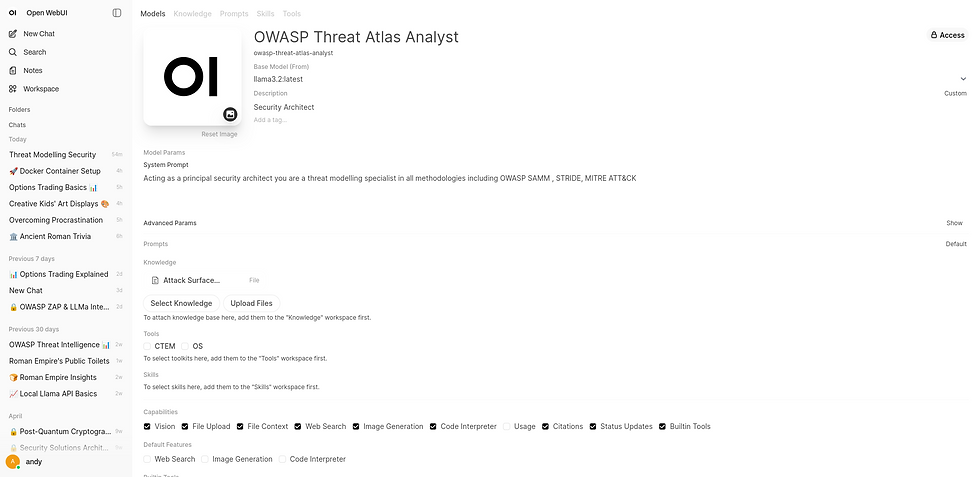
I found the OWASP Threat Atlas platform really easy to deploy and integrate with Claude, less so with Ollama, and also found the default LLama 3.2 wanting in the threat modelling department without adding a specific workspace
The default OWASP Threat Atlas backend DB container was also sensitive to changes so needed a complete container removal and re-build , so would recommend setting up for your specific OWASP Threat Atlas > LLM networking before the OWASP deployment and UI configuration as it still complained when testing.
Tested Claude Sonnet 4.6 as well and found its risk / threat analysis and mitigating security controls spot on, albeit at 35x the cost.




Comments